 Doca
Widget · Time
World clock on the Windows taskbar
If you work with people in another time zone, or have family far away, you check their time several times a day. Windows can show another clock, but only when you ask.
Quick answer
In Windows, go to Settings › Time & language › Date & time › Additional clocks and turn on up to two clocks for other time zones; they show when you hover over the taskbar clock. To see the other time zone without hovering, put Doca's World clock widget on the dock: one widget per city, always visible.
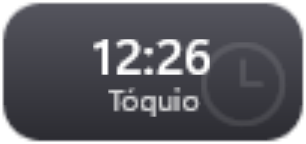
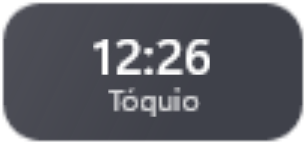
Windows' additional clocks
- Open Settings › Time & language › Date & time.
- Under Additional clocks, check Show this clock, pick the time zone and give it a name.
- Repeat for the second clock (Windows allows up to two).
They show when you hover over the taskbar clock (on Windows 10, also when you open the calendar). On the bar itself, only your local time.
Doca's World clock
- Always visible on the dock, with the city name, in the Glass or Vivid colors style.
- 13 ready-made cities, like New York, London, Paris, Tokyo and São Paulo; the time zones are Windows' own, so daylight saving time is handled for you.
- As many as you want: each widget shows one time zone; put two or three side by side.
- Digital or analog, 12 or 24 hours, with or without seconds.
A time zone per environment
Each Doca environment has its own widgets. Put your overseas client's clock in the Work environment and leave it out of leisure. See the other widgets on the bar.
Frequently asked questions
How many clocks does Windows show?
Up to two additional clocks besides the main one, and only when you hover over the clock.
Does Doca's World clock handle daylight saving time?
Yes. It uses Windows' own time zones, which already include each place's daylight saving time.
Which cities are there?
Honolulu, Los Angeles, Chicago, New York, São Paulo, London, Paris, Athens, Dubai, New Delhi, Beijing, Tokyo and Sydney.
How much is it?
7 days free with everything unlocked. After that, US$ 9 once, no subscription.