 Doca
Windows 11 · Taskbar
Taskbar icon size
Windows only gives the whole taskbar two sizes: default or small. For something in between, or bigger than default, you need a dock.
Quick answer
In Settings › Personalization › Taskbar › Taskbar behaviors, check Use small taskbar buttons for the smaller size, or uncheck it for the default. That's the only two options, for the whole bar at once. In Doca, drag the dock's edge handle, or go to Settings › Appearance, for any size from 32 to 96 pixels.
The two options Windows gives you
- Right-click the taskbar › Taskbar settings.
- Open Taskbar behaviors.
- Check or uncheck Use small taskbar buttons.
The setting applies to the whole bar at once: you can't make one icon bigger than the others, or pick a size between default and small.
Icon by icon, with a dock
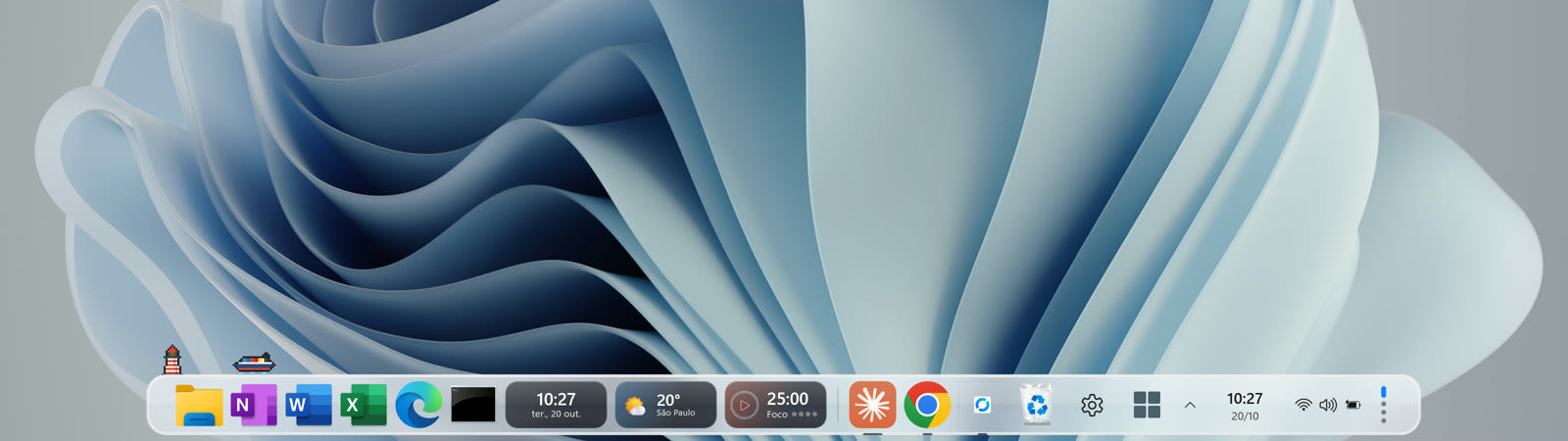
In Doca, icon size ranges from 32 to 96 pixels, set by dragging the dock's edge handle or with the slider in Settings › Appearance. The magnifier adds to that: the icon under the pointer grows from that base size.
When it's worth changing
- Laptop or a small screen: smaller icons leave more room for your open apps.
- A large or 4K monitor: bigger icons are easier to click and stay in proportion with the screen.
- Lots of pinned apps: slightly smaller icons keep the bar from feeling cramped.
Frequently asked questions
How do I make taskbar icons smaller in Windows 11?
Settings › Personalization › Taskbar › Taskbar behaviors › Use small taskbar buttons.
Can I make them bigger than default in plain Windows?
No. Windows only has the two sizes, default and small, for the whole bar.
Does Doca let me pick an exact size?
Yes, by dragging the dock's edge handle or with the slider in Settings › Appearance, from 32 to 96 pixels.
How much is Doca?
7 days free with everything unlocked. After that, US$ 9 once, no subscription.