 Doca
Windows 10 and 11 · Organization
How to separate work and leisure on Windows
One PC for work, study and games gets messy fast: a crowded taskbar, the game next to the spreadsheet. Windows has a tool for this, and it gets better with a dock for each moment.
Quick answer
Create a virtual desktop per subject: Win + Ctrl + D creates one, Win + Ctrl + ←/→ switches and Win + Tab shows them all (you can name each one and give it a wallpaper). Doca adds environments: each with its own pinned apps, widgets and color, and only the windows opened there. You can tie each environment to a desktop.
Virtual desktops, done right
- Win + Tab opens Task View; New desktop (or Win + Ctrl + D) creates another.
- Right-click a desktop to rename it ("Work", "Study", "Games") and pick a wallpaper for it.
- Switch with Win + Ctrl + ←/→, or four fingers on the touchpad.
- In Settings › System › Multitasking, decide whether the taskbar shows windows from all desktops or just the current one.
The catch: the taskbar and pinned apps are the same on every desktop. The game shortcut is still there when it's time to work.
Environments: a dock for each moment
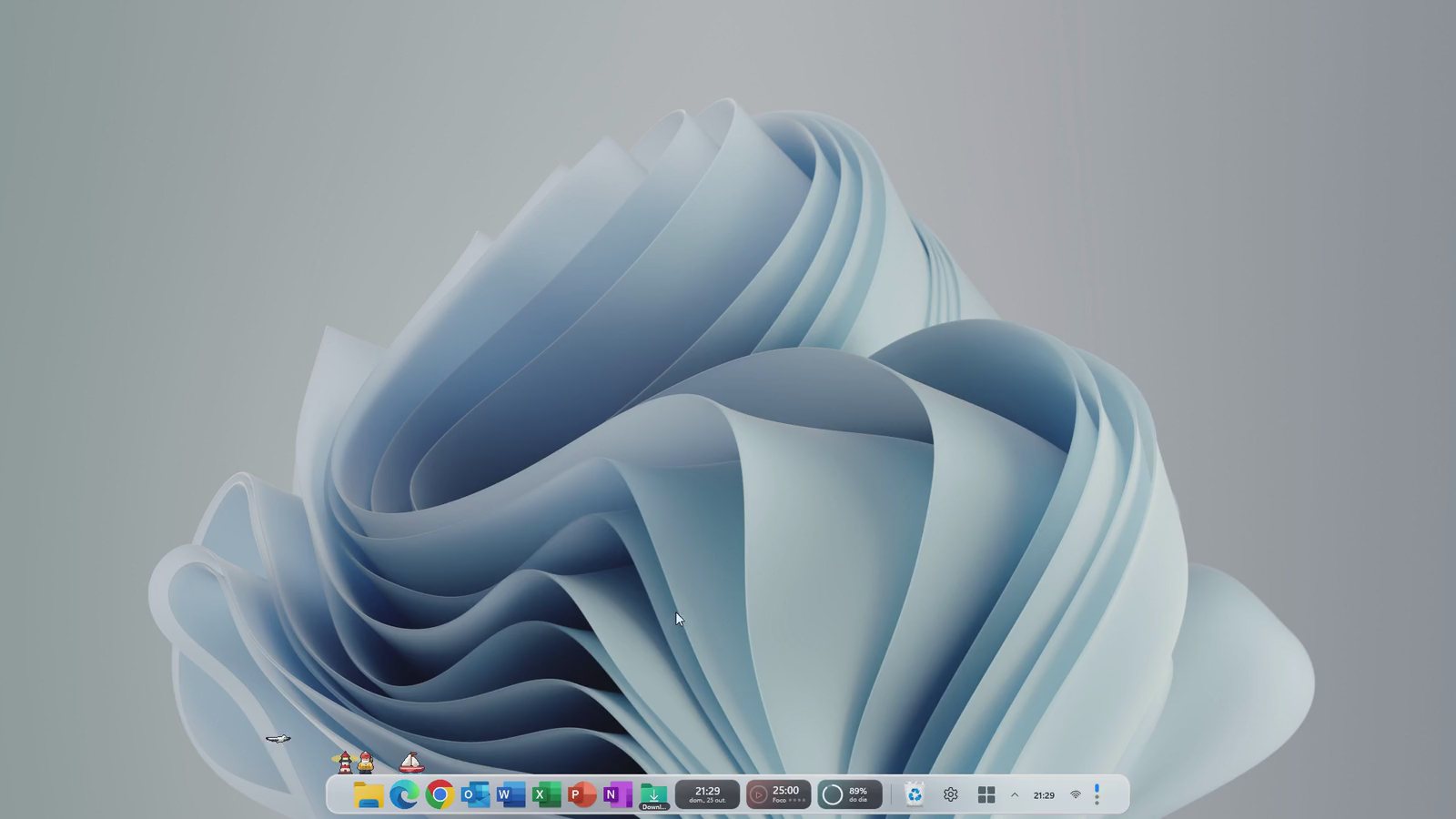
- Each environment has its own pinned apps, widgets and color: email and Pomodoro at Work, a reader and calculator for Study, Steam and Discord for Leisure.
- Only that environment's windows: Doca can hide the others' windows (put away, not closed). A watchdog brings everything back if it closes.
- Quick switching: a spin of the mouse wheel over the dock, a shortcut, the touchpad, or automatically when you change Windows desktops.
- Works with desktops: tie an environment to each desktop, or switch environments without leaving the current desktop.
Frequently asked questions
How do I create desktops in Windows 11?
Win + Ctrl + D creates a new desktop; Win + Ctrl + arrows switches; Win + Tab shows them all, where you can rename each and pick its wallpaper.
Are Doca environments virtual desktops?
They work alongside them. Each environment keeps apps, widgets and windows; you can tie an environment to each Windows desktop or switch without leaving the current one.
Are other environments' windows closed?
No. They're put away and come back when you return to that environment. If Doca closes, a watchdog restores every window.
How much is it?
7 days free with everything unlocked. After that, US$ 9 once, no subscription.